2014-02-02 13:01
Author: Peter Barycki
install Android applications on the BlackBerry 10.2.1 is admittedly much easier than before, but still it is difficult to name it as simple and intuitive as using the BlackBerry World. Fortunately, few steps away from the virtually complete access to Google Play through the application Snap.
first we have to do is to download to your computer (!) installation file. Application bar Snap. We can do this by going to the manufacturer’s example and cutting through the appropriate tab or simply click here, where you will always find the latest version.
If you already have a file. bar with the application Snap, remains for us to arm yourself with:
- smartphone with BlackBerry 10
- USB cable
- Application DDPB
- BlackBerry Application Link
- computer
Before starting the procedure, we must prepare our smartphone:
- the Home screen, drag your finger from the top of the screen to bring up the menu
- Select “Settings”
- “Security and privacy”
- “Creation Mode”
- control Activate “Use mode to create”
- introduce arbitrarily set by us password
- We remember the password
DDPB install the application and all necessary for the proper operation of the components. Run, then we see a main screen:
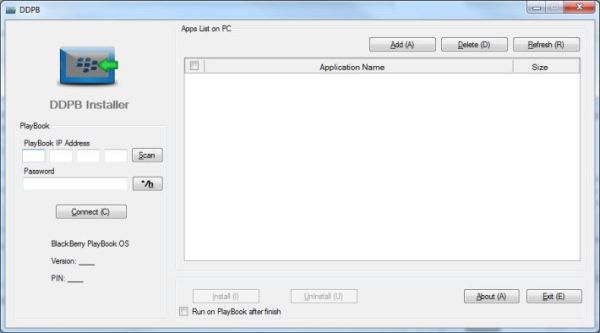
do not accept at this absolute fact that the whole program seems dedicated to the BlackBerry PlayBook tablet and confidently connect your phone to the USB port. If this is the first connection, you will probably have to wait a few moments before it is properly diagnosed and before the necessary drivers will be installed.
Once this process is complete, select “Scan” at the “PlayBook IP address” and when it is detected we introduce below the password you have just agreed to the creation mode. Then press the “Connect” and wait until the operation completes successfully.
To install Snap on our phone just now from the top menu select “Add”, select the file. applications bar Snap saved to disk, and then press “Install” and wait until DDPB inform us of the installation process . After this we can safely disconnect your phone from the computer, turn off the creation (it will only upset us asking you for your password), remove the device password and start the adventure z .. Google Play.
Snap icon appears in the menu of the equipment as well as all the other programs installed by us. Using it at a later time is as simple as using the BlackBerry World – wyszykujemy application, select the option to download and install (at first we will have to agree to the installation of alternative sources).
Service BBNews.pl is part of the PROGET group.


No comments:
Post a Comment